What Is Fluentra? A Tour of the Learner App and the Tutor Workspace
Fluentra is one platform with two sides: an app for adults learning English, and a workspace for the tutors who teach them. Here's what each side does — and what it doesn't.
On this page
Fluentra is an English learning and teaching platform. Learners use it to study on their own with structured courses, practice that explains their answers, speaking tasks they can record and play back, and a personal word list. Tutors use it to build lessons, set homework and keep track of their students. Both sides work in the browser on a phone, tablet or computer.
This page walks through what each side does, how they connect, and — just as important — what Fluentra doesn't do.
Fluentra in one minute
If you're learning English, Fluentra gives you three courses (B1, B2 and C1), a daily review of the words you've saved, and speaking practice built into every course lesson. You don't need a tutor to use any of it.
If you teach English, Fluentra gives you one place to create lessons from your own material, assign them as homework to a student or a whole group, and see who has finished and how they scored.
The two meet when a tutor assigns something: it appears in the learner's app, and the result comes back to the tutor.
For learners: what you can do
Follow a structured course: B1, B2 or C1
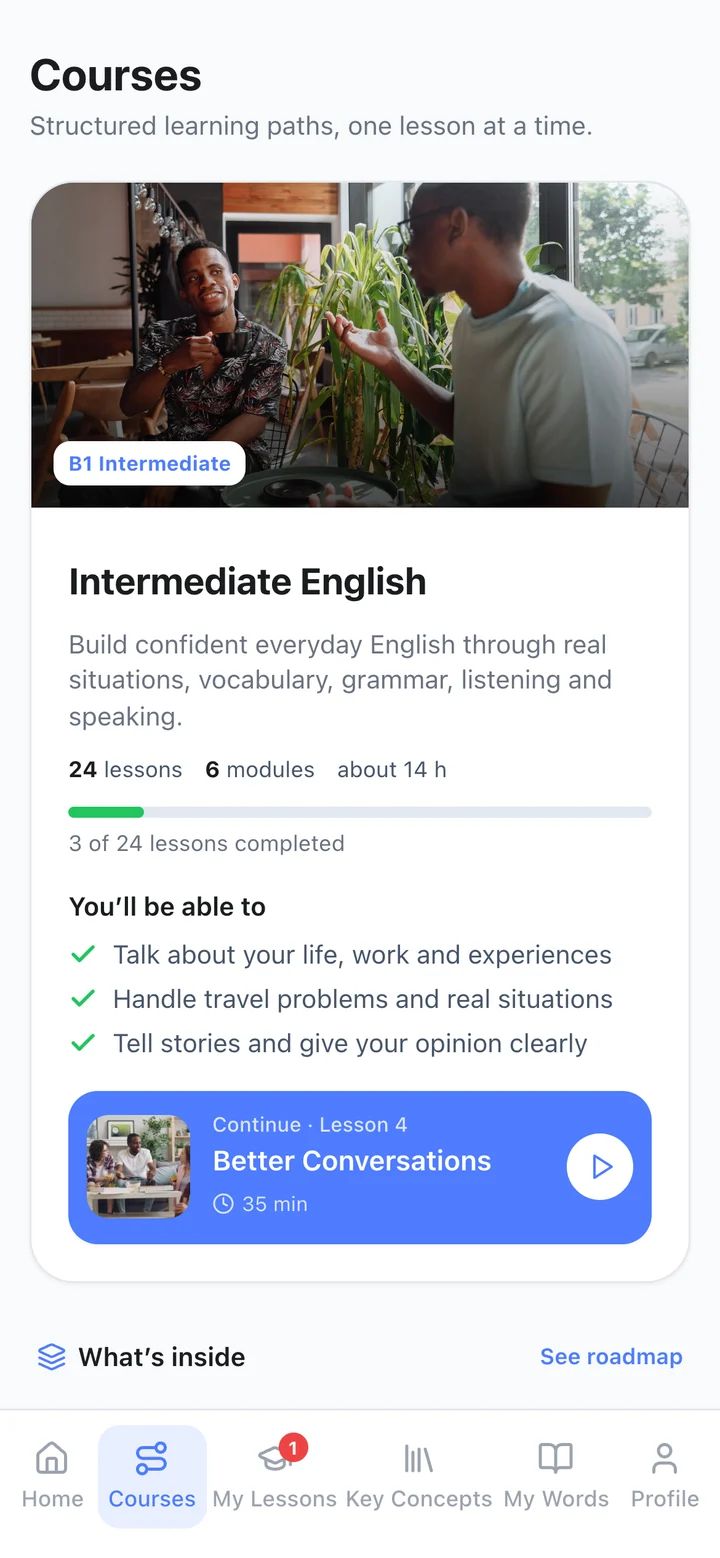
There are three courses, each with 24 lessons in six modules:
- Intermediate English (B1) — everyday communication, work and study, travel, stories, opinions. About 14 hours.
- Upper-Intermediate English (B2) — confident communication, working life, problems and solutions, society and ideas. About 16 hours.
- Advanced English (C1) — precision and nuance, professional influence, argument and evidence, complex conversations. About 18 hours.
Each lesson has one clear goal, such as telling a story in the right order or making a complaint that gets results, and a roadmap shows where you are in the course. If you're not sure which level fits, our guide to CEFR levels explains what B1, B2 and C1 mean in practice.
Work through a lesson in seven steps
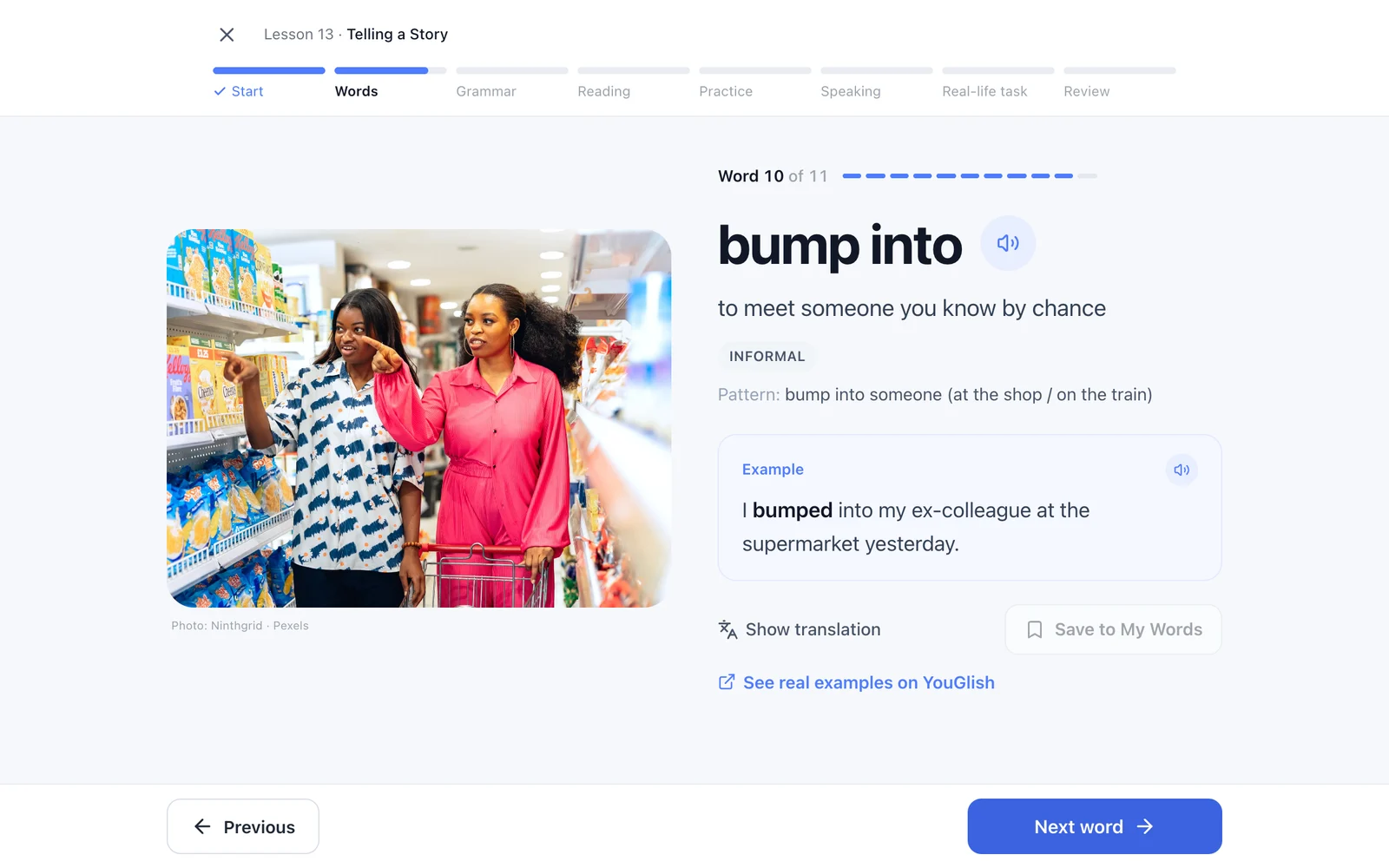
Every course lesson follows the same path: words and phrases (meaning, example, audio), a short grammar step, a reading you can also listen to, mixed practice, speaking, a real-life task that puts it all together, and a quick review. A lesson takes 35 to 45 minutes, and you can stop and come back.
Get feedback on the answer you actually gave
When you answer a practice question, the feedback is written for the option you chose, not just "correct" or "incorrect". If you pick in the corner where English says on the corner, you'll see why. Gap-fills give you a hint before the answer, and anything you miss comes back at the end of the set so you can try again.
Record yourself speaking
Speaking tasks let you record your answer, play it back and compare it with an example answer. You can record again as many times as you like. Your recording stays on your device; it isn't uploaded.
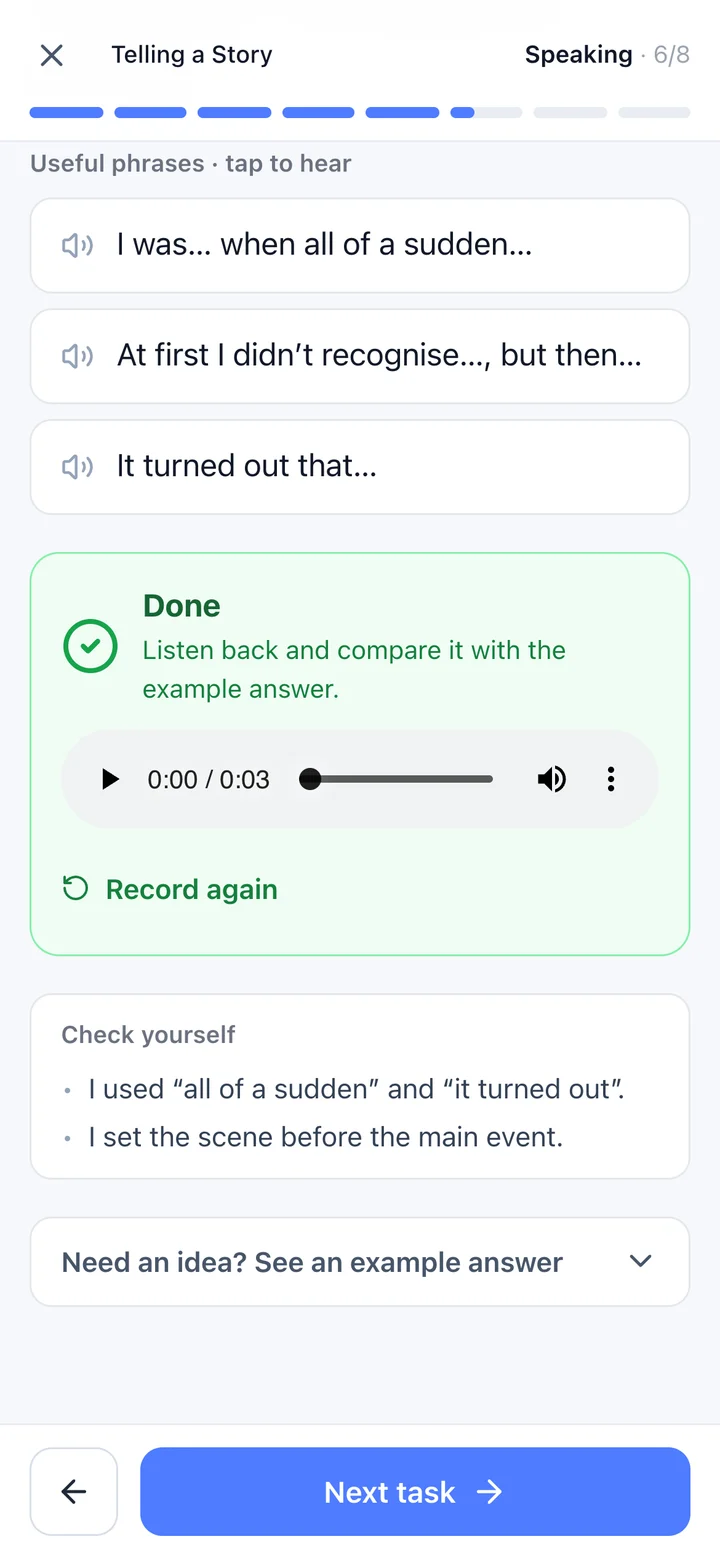
Speaking tasks: record, listen back, compare with the example.
Build your own word list
Any word or phrase you save goes into My Words. Each one has audio, a translation into your own language, a definition and an example, plus a link to real videos of people using it on YouGlish, a free third-party site.
Review a little every day
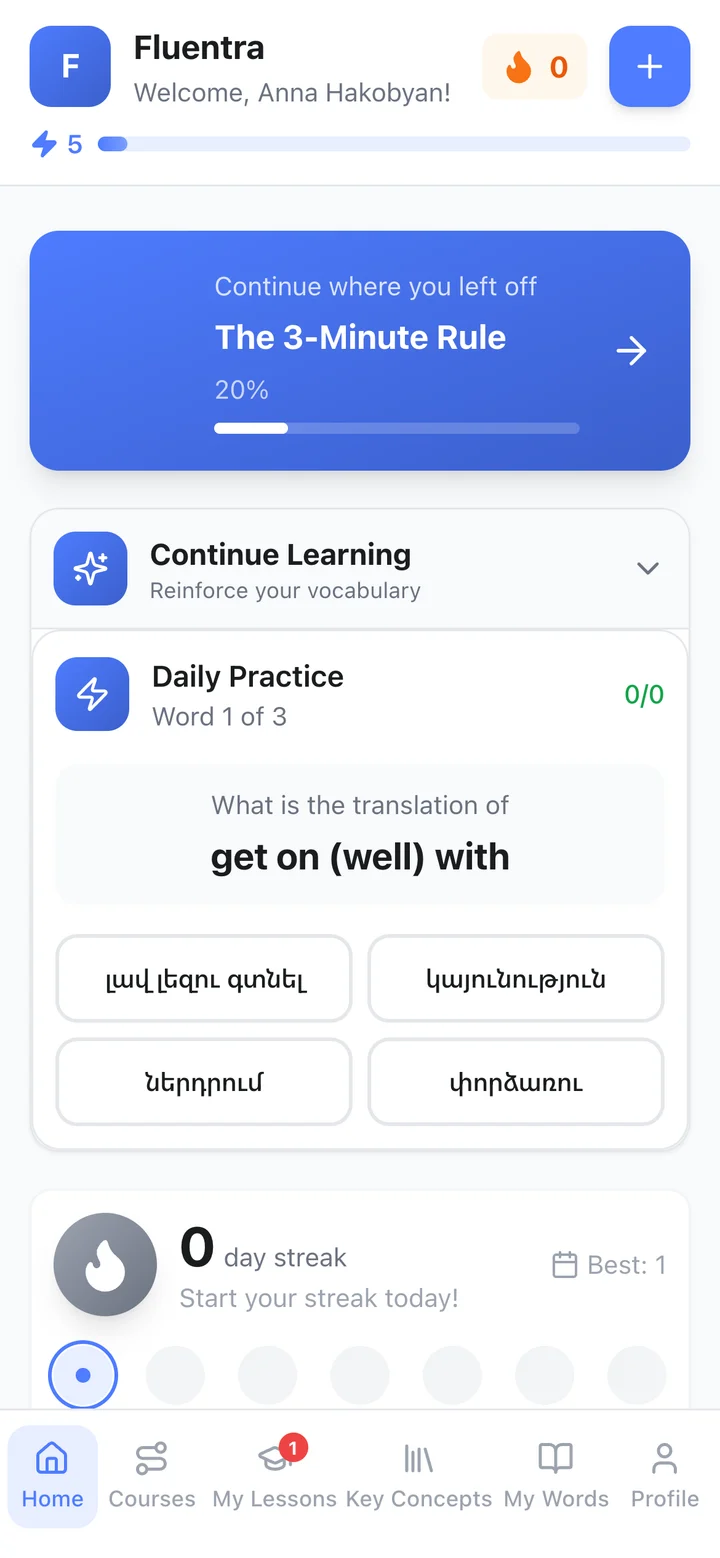
Daily practice gives you a short quiz on the saved words you haven't marked as learned yet. Your home screen takes you back to your current lesson, and your streak, XP and level show how consistent you've been.
For tutors: what the workspace does
Build lessons from your own material
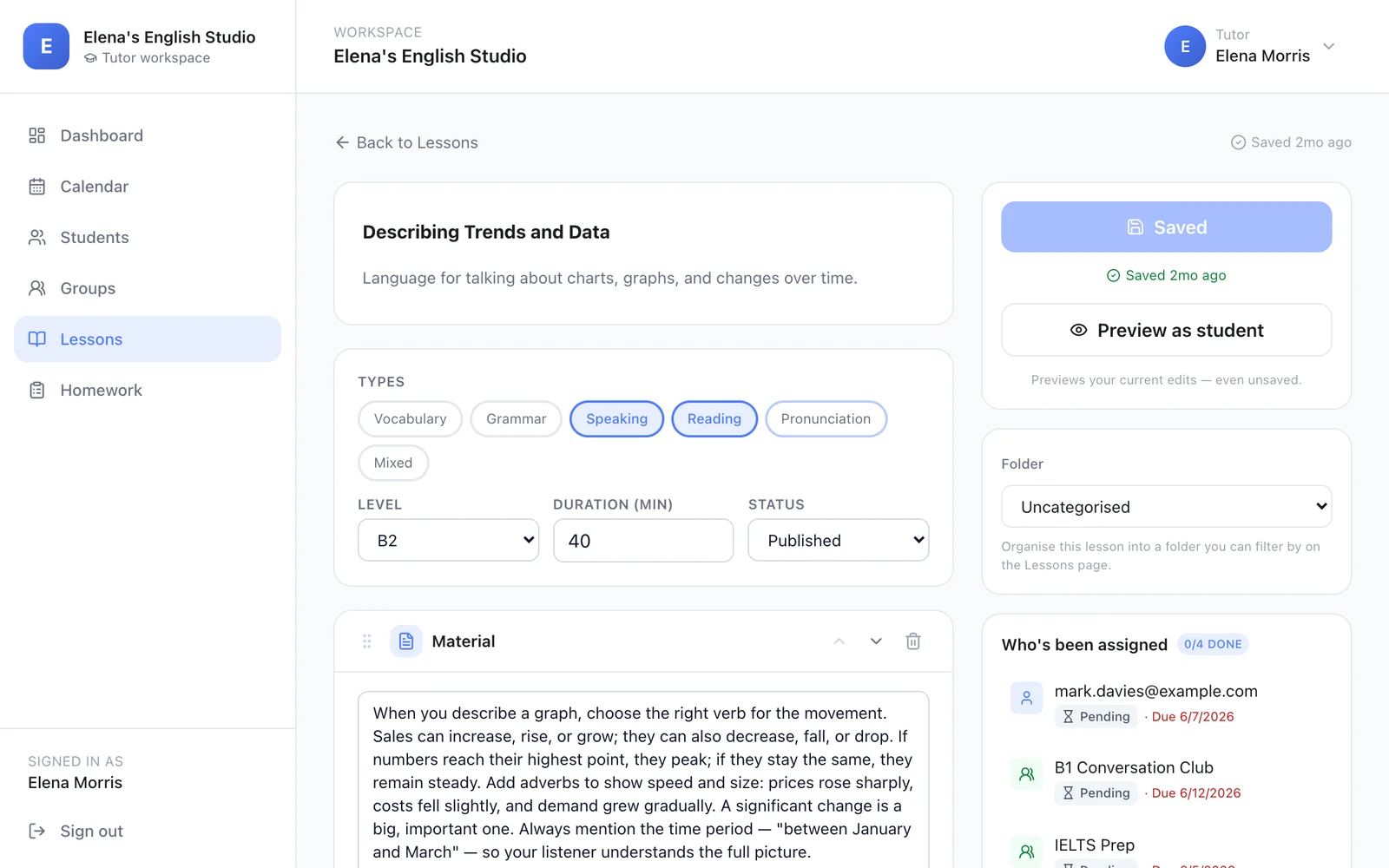
The lesson builder lets you put a lesson together from sections: reading material (paste a text or upload a PDF), vocabulary that translates automatically for your learners, multiple-choice questions, gap-fills, true/false, matching, and video. You set the level and duration, keep lessons in folders, duplicate them, and preview a lesson as a student before you assign it.
Assign homework and see what happened
You can assign any lesson to one student or a whole group, with a due date and a note. The homework list shows what's pending, overdue and completed, and opening an assignment shows each learner's result — for example, 4 of 6 correct.
Manage students and groups
Students join with your invite link, or you add them yourself. You can filter them by status, level or group, see who has been most active recently, and organise them into groups so one assignment reaches the whole class.
Plan your week
A calendar with week and month views keeps your lessons and group sessions in one place.
How learners and tutors use it together
A tutor shares an invite link, and the learner joins the tutor's workspace. The tutor assigns a lesson; it appears in the learner's My Lessons, where they read the material, tap words to translate and save them, and answer the questions. The tutor then sees who has finished, who is overdue and how each learner scored.
Learners who work with a tutor can still use everything else — the courses, daily practice and their word list — on their own.
What Fluentra doesn't do
It's worth being clear about the limits, so you can decide whether it fits:
- No beginner course yet. The courses start at B1. If you're an absolute beginner (A1–A2), you can use My Words and daily practice, but there isn't a structured course at your level. There's no C2 course either.
- It isn't a video-call platform. Tutors run live lessons in whatever call tool they already use; Fluentra holds the lesson material, homework and progress.
- No payments or invoicing for tutors. You'll still need your own way to take bookings and payments.
- No certificates. Finishing a course doesn't give you an official qualification. For that, take a recognised exam.
- No automatic pronunciation scoring. The recorder lets you hear yourself and compare with an example; it doesn't grade your accent.
- Courses need course access. Creating an account is free; the B1, B2 and C1 courses are available with course access.
Who it's for
Fluentra fits adults who already know some English and want to get more confident and accurate — especially people studying on their own who want structure without a fixed class schedule. On the teaching side, it's built for private and online English tutors who want their lessons, homework and progress tracking in one place rather than spread across documents, chats and spreadsheets.
How to get started
- Create a free account at app.fluentra.pro.
- Choose I want to learn or I want to teach.
- Learners: save a few words from a reading and try daily practice, or start your course if you have course access. Tutors: set up your teaching profile, then invite your students with your link.
If you're learning on your own, our guide to learning English efficiently and 12 ways to practise speaking alone are good next reads.
Questions people ask
Is Fluentra free?
Creating an account is free. The B1, B2 and C1 courses are available with course access.
Do I need a tutor to use Fluentra?
No. The courses, daily practice, speaking tasks and your word list all work on your own. If you do have a tutor on Fluentra, the lessons they assign appear in My Lessons.
Which devices does Fluentra work on?
It works in the browser on phones, tablets and computers. You don't need to install anything.
Which English levels does Fluentra cover?
The courses cover B1 (intermediate), B2 (upper-intermediate) and C1 (advanced). There's currently no A1–A2 or C2 course.